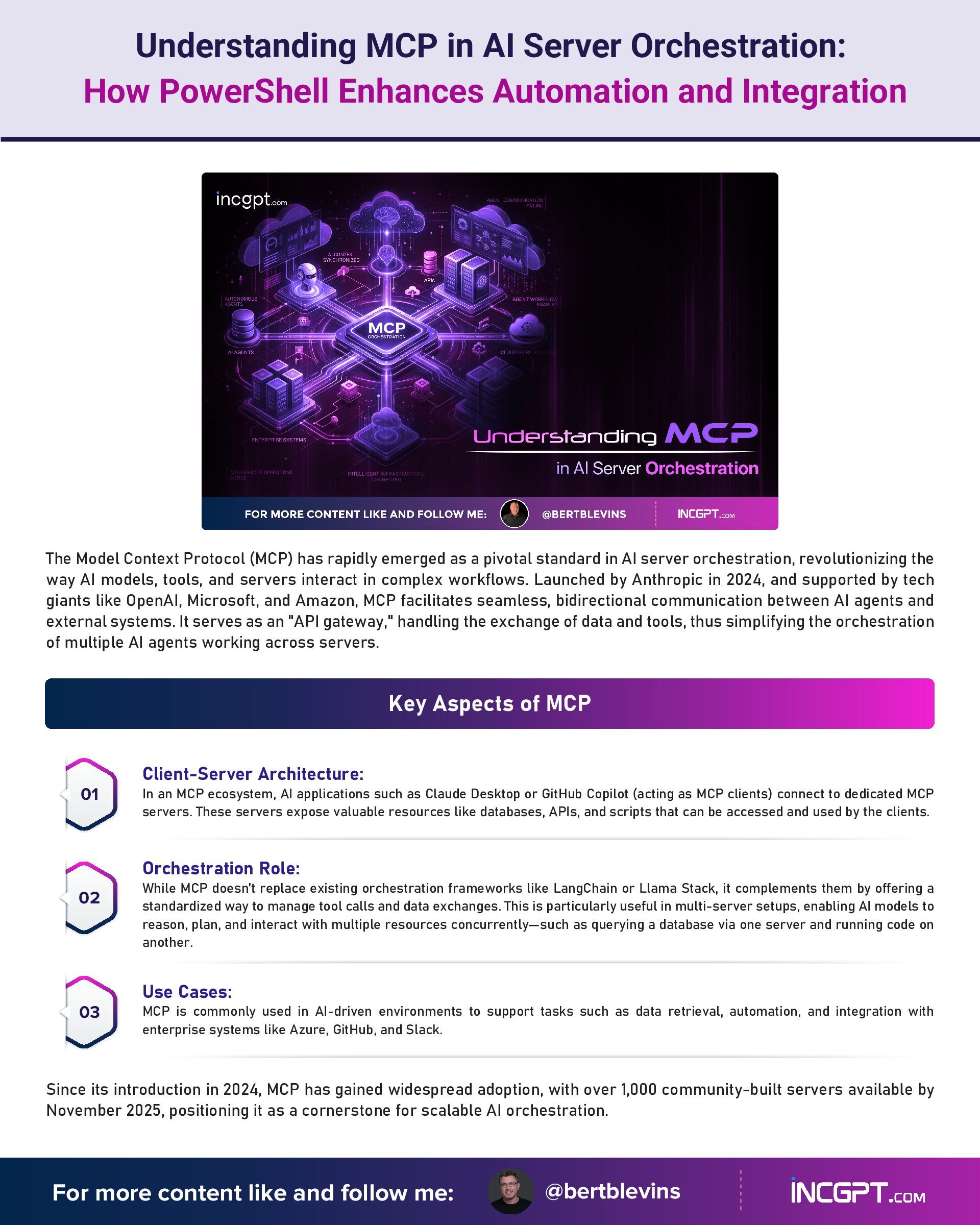
Understanding MCP in AI Server Orchestration: How PowerShell Enhances Automation and Integration
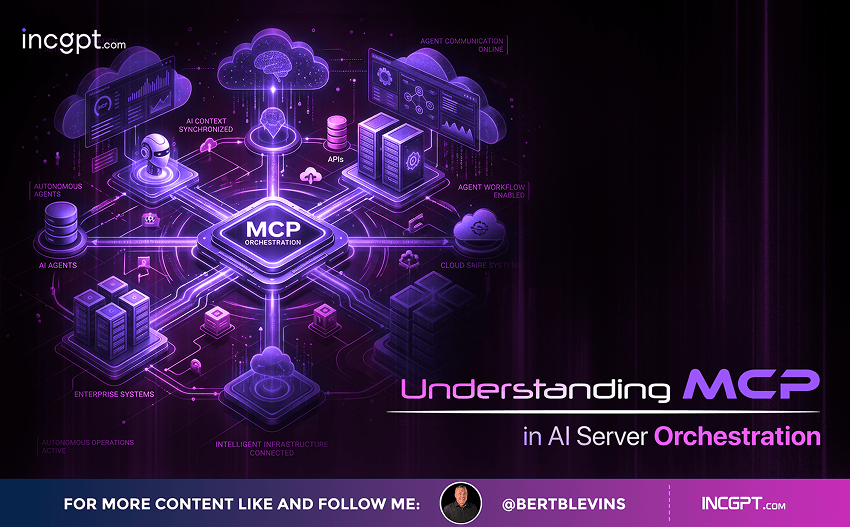
The Model Context Protocol (MCP) has rapidly emerged as a pivotal standard in AI server orchestration, revolutionizing the way AI models, tools, and servers interact in complex workflows. Launched by Anthropic in 2024, and supported by tech giants like OpenAI, Microsoft, and Amazon, MCP facilitates seamless, bidirectional communication between AI agents and external systems. It serves as an “API gateway,” handling the exchange of data and tools, thus simplifying the orchestration of multiple AI agents working across servers.
Key Aspects of MCP
1. Client-Server Architecture: In an MCP ecosystem, AI applications such as Claude Desktop or GitHub Copilot (acting as MCP clients) connect to dedicated MCP servers. These servers expose valuable resources like databases, APIs, and scripts that can be accessed and used by the clients.
2. Orchestration Role: While MCP doesn’t replace existing orchestration frameworks like LangChain or Llama Stack, it complements them by offering a standardized way to manage tool calls and data exchanges. This is particularly useful in multi-server setups, enabling AI models to reason, plan, and interact with multiple resources concurrently—such as querying a database via one server and running code on another.
3. Use Cases: MCP is commonly used in AI-driven environments to support tasks such as data retrieval, automation, and integration with enterprise systems like Azure, GitHub, and Slack.
Since its introduction in 2024, MCP has gained widespread adoption, with over 1,000 community-built servers available by November 2025, positioning it as a cornerstone for scalable AI orchestration.
PowerShell as an Intermediary for MCP AI Server Orchestration
PowerShell, traditionally known for its robust automation capabilities within Windows ecosystems, can serve as an effective intermediary in MCP-based AI server orchestration. In a setup where multiple servers and AI agents interact, PowerShell plays a key role in executing scripts, automating tasks, and orchestrating communication between AI agents and server resources.
How PowerShell Integrates with MCP:
1. Executing Scripts and Commands: PowerShell scripts can be remotely or locally invoked via MCP servers, making it possible for AI agents to orchestrate Windows-specific tasks such as system automation or data analysis.
2. Integrating with MCP Servers: Dedicated MCP servers can expose PowerShell as a tool, allowing AI clients to send PowerShell scripts for execution. The results are returned in real-time, enabling further orchestration decisions.
3. Orchestration Layer: PowerShell enhances MCP orchestration by acting as a bridge between AI agents and resources. For example, in a multi-server MCP setup, PowerShell can facilitate communication between servers, enabling the efficient execution of distributed tasks across a hybrid environment, such as Azure or local files.
This functionality is particularly powerful in Windows-heavy environments, hybrid clouds (e.g., Azure), or DevOps pipelines, where PowerShell’s object-oriented scripting excels in handling structured data and automation.
Practical Implementations of PowerShell in MCP
PowerShell integrates seamlessly with MCP through lightweight servers that act as intermediaries between AI agents and server resources. Below are examples of how PowerShell interacts with MCP servers:
1. PowerShell Exec MCP Server: A Python-based server that receives PowerShell scripts from AI agents and executes them locally. This setup bridges AI tools with Windows automation, allowing agents to execute commands like Get-Process and stream the output back for decision-making.
2. Windows CLI MCP Server: This server supports PowerShell, CMD, Git Bash, and SSH remoting. It enables AI chatbots to use shell commands for tasks like deploying updates across machines using Invoke-Command.
3. PowerShell Universal MCP Plugin: This plugin integrates PowerShell scripts with GitHub Copilot, allowing AI models to generate and run PowerShell code as part of an orchestrated workflow. For example, Copilot can execute tasks like starting processes or managing services within a multi-server orchestration.
4. Azure MCP Server: In cloud environments like Azure, PowerShell credentials are used to integrate with MCP for automation tasks. AI agents can use commands like Get-AzVM to troubleshoot or manage resources across different servers in a distributed system.
5. MCP Orchestration Servers: These tools, like multi-MCP managers, route requests across PowerShell-enabled servers. They scale to manage hundreds of servers, integrating PowerShell outputs with other tools (e.g., databases) to support agent-driven workflows.
Setting Up PowerShell as an MCP Intermediary: A Practical Example
Step 1: Install the PowerShell Exec MCP Server
To get started, you’ll need Python 3.10+ and PowerShell 5.1+. Clone the PowerShell Exec MCP Server repository from GitHub (e.g., dfinke/mcp-powershell-exec) and run the following command to set up the server:
python server.py
Next, configure your MCP client (e.g., Claude Desktop) with the server’s URL (e.g., http://localhost:5000/sse).
Step 2: Orchestrate via an AI Client
Once the PowerShell Exec MCP server is running, you can orchestrate workflows from an AI client like GitHub Copilot. For example, you could ask:
“Orchestrate a workflow: List running processes on server X and email results if CPU > 80%.”
This would prompt the AI to send the following PowerShell script to the server for execution:
$processes = Get-Process | Where-Object { $_.CPU -gt 80 }
if ($processes) {
Send-MailMessage -To “admin@example.com” -Subject “High CPU Alert” -Body ($processes | Out-String)
}
The output from this script would be fed back to the AI client, which could use the data to make further orchestration decisions, such as scaling resources.
Step 3: Scaling for Multi-Server Orchestration
In larger setups, you can integrate multiple PowerShell MCP servers using frameworks like Llama Stack as the top-level orchestrator. This setup allows for more complex workflows across multiple servers and ensures that PowerShell commands are executed efficiently and securely.
Limitations and Considerations
While PowerShell’s integration with MCP is powerful, it does come with some limitations:
Platform Dependency: PowerShell is best suited for Windows ecosystems, although it does support cross-platform use via PowerShell Core (pwsh). However, for cross-platform orchestration, alternatives like Python or Node.js may provide a more seamless experience.
Performance: PowerShell is excellent for administrative tasks and automation but may not be ideal for high-throughput machine learning tasks. For such scenarios, using Python or other high-performance languages is recommended.
Security: As with any orchestration system, security is crucial. It is essential to use authentication methods like API keys or OAuth and ensure sensitive endpoints are protected from unauthorized access.
Alternatives: For users who prefer not to use PowerShell, alternatives like the Python FastMCP SDK or LangChain for pure orchestration are available.
Conclusion
PowerShell serves as a robust intermediary for MCP-based AI server orchestration, enabling AI agents to automate tasks, manage resources, and execute commands in Windows-heavy environments. By integrating PowerShell with MCP, enterprises can streamline automation, improve data management, and orchestrate complex workflows across multiple servers. Despite its platform dependency and performance limitations for certain tasks, PowerShell remains a valuable tool for administrators, particularly in hybrid cloud and DevOps pipelines.