Claude Skills Explained: A Practical Guide to Automating Your AI Workflows
If you use Claude regularly, you’ve probably found yourself typing the same kind of instructions over and over. Maybe it’s a formatting request, a tone guideline, or a multi-step process you always follow when building a report. Skills solve that problem. They let you package a set of instructions once and have Claude apply them automatically whenever they’re relevant, without you needing to re-explain your process every single time.
This guide walks through what skills actually are, how to build and organize them, where they shine in real work, and how to use them without opening yourself up to unnecessary risk — especially if you’re pulling skills from outside sources rather than building your own.
What a Skill Actually Does
A skill is a saved, reusable instruction set that Claude loads automatically when a task calls for it. Instead of a one-off prompt that disappears after you send it, a skill sits in the background and activates itself based on context. That’s the key difference from a normal prompt: you’re not pasting the same guidelines into every conversation. You write them once, and Claude recognizes when to pull them back out.
This matters most for repeat work. If you regularly produce the same type of output — a certain report format, a specific coding style, a branded document layout — a skill turns that repetition into something automatic. The result tends to be faster turnaround and more consistent quality, since Claude isn’t reconstructing your preferences from scratch each time.
Building Your Own Skills
There are two straightforward ways to create a skill. You can use the built-in skill builder to write instructions directly inside the app, describing the task and how you want it handled. Or, if you already have documented processes, you can upload a markdown file and Claude will convert it into a working skill. The markdown route is useful if you’ve already got style guides, SOPs, or templates written up elsewhere.
Once a skill exists, it lives in your account’s customization settings, where you can turn it on or off, edit the instructions, or retire it entirely. Treat this as a living library rather than a set-and-forget system — revisiting your skills periodically to sharpen the wording or update outdated steps keeps them useful as your work evolves.
Where Skills Actually Get Used
A few examples show how varied the use cases can get:
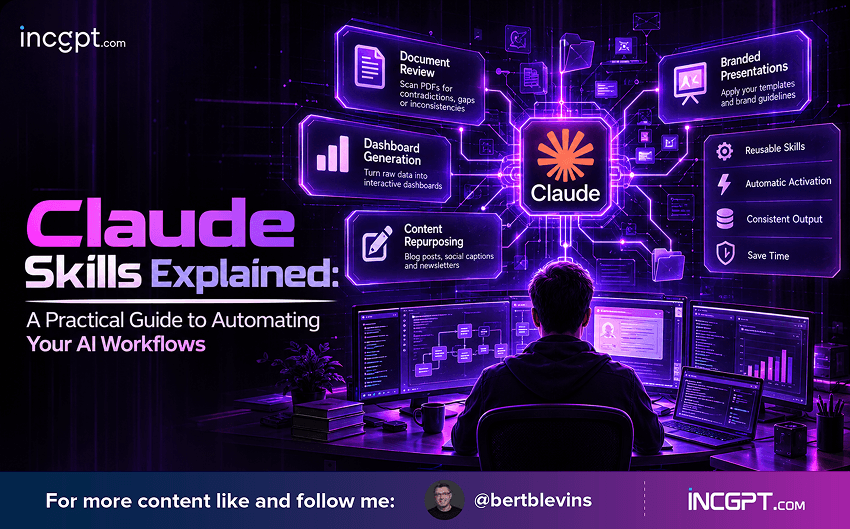
- Document review: a skill that scans lengthy PDFs for contradictions, gaps, or inconsistent figures, cutting down on manual proofreading.
- Dashboard generation: a skill that takes raw CSV exports and turns them into a formatted, interactive dashboard without you specifying layout every time.
- Content repurposing: a skill that takes a single transcript or article and reliably reshapes it into a blog post, a social caption, and a newsletter blurb, each matching a defined style.
- Branded presentations: a skill that applies your slide templates and brand guidelines automatically, so decks come out consistent without manual formatting each time.
Security: Why Third-Party Skills Deserve Scrutiny
Skills you build yourself are low-risk, since you control every instruction inside them. Skills downloaded from outside marketplaces are a different story. A skill is essentially a set of instructions with some amount of trust baked in, and a poorly vetted one could push Claude toward actions you didn’t intend or mishandle sensitive information you feed into it.
A few habits go a long way toward keeping this safe:
- Read through the full instruction set before enabling any skill you didn't write yourself.
- Only pull skills from sources you actually trust — avoid grabbing files from random forums or unverified repositories.
- Where possible, start from templates that have gone through some form of vetting rather than building on an unknown foundation.
Getting More Out of the Skills You Build
A skill is only as useful as the instructions behind it. A few practices consistently improve results:
- Keep the instructions specific — vague guidance produces vague, inconsistent output.
- Revisit and tighten skills periodically instead of leaving them untouched after the first draft.
- Attach supporting files, like brand guides or reference templates, when the task depends on matching a particular look or tone.
Beyond Basic Automation
Skills aren’t limited to text formatting. They can trigger code generation for development or analysis tasks, run deeper data analysis on structured datasets, and produce shareable artifacts like dashboards or full reports. Because this functionality isn’t locked to one platform, skills-style workflows can also extend into other AI tools, which is useful if your work already spans more than one assistant.
The Bottom Line
Skills turn Claude from a tool you re-instruct every session into something closer to a configured assistant that already knows how you like things done. Building your own is low-risk and high-reward, provided you keep the instructions clear and revisit them over time. Third-party skills add real convenience, but they’re worth treating with the same caution you’d apply to installing any unfamiliar software — check what it actually does before you let it run.