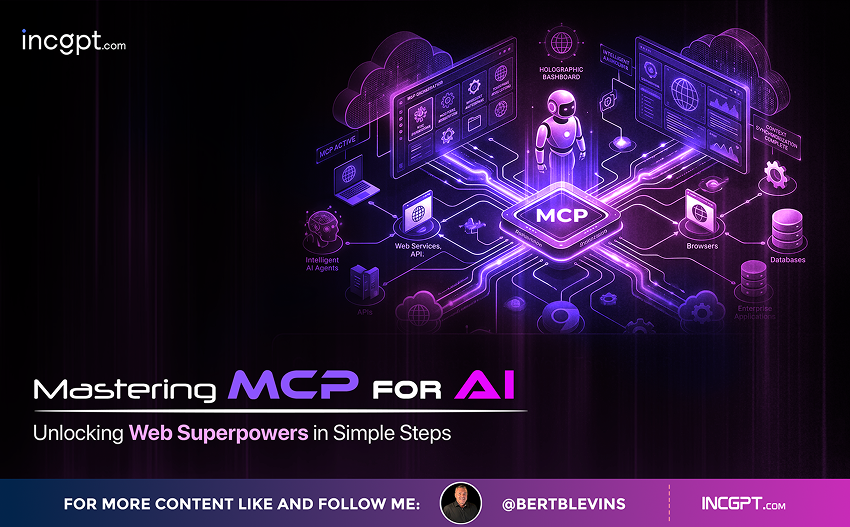
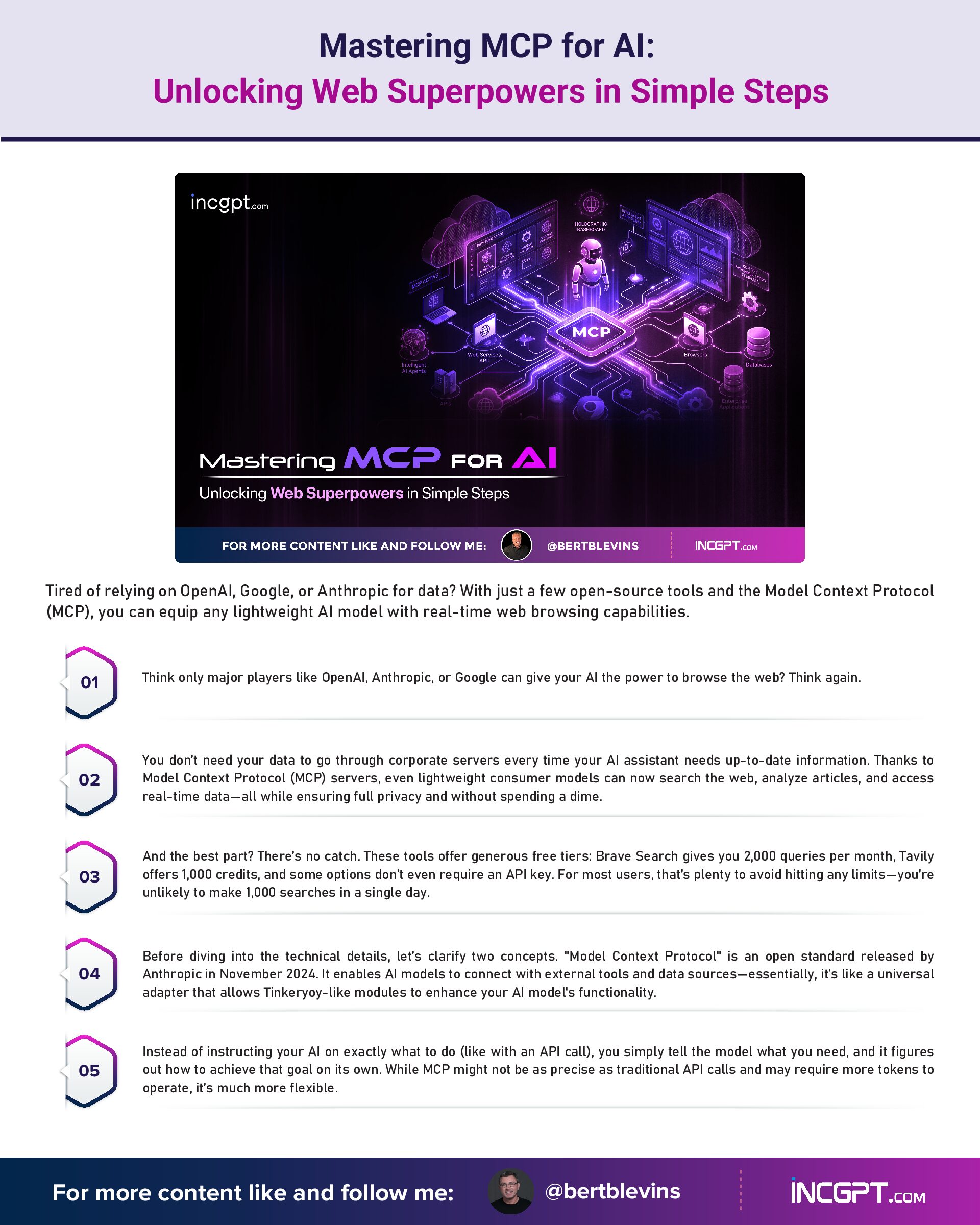
Mastering MCP for AI: Unlocking Web Superpowers in Simple Steps
Tired of relying on OpenAI, Google, or Anthropic for data? With just a few open-source tools and the Model Context Protocol (MCP), you can equip any lightweight AI model with real-time web browsing capabilities.
Think only major players like OpenAI, Anthropic, or Google can give your AI the power to browse the web? Think again.
You don’t need your data to go through corporate servers every time your AI assistant needs up-to-date information. Thanks to Model Context Protocol (MCP) servers, even lightweight consumer models can now search the web, analyze articles, and access real-time data—all while ensuring full privacy and without spending a dime.
And the best part? There’s no catch. These tools offer generous free tiers: Brave Search gives you 2,000 queries per month, Tavily offers 1,000 credits, and some options don’t even require an API key. For most users, that’s plenty to avoid hitting any limits—you’re unlikely to make 1,000 searches in a single day.
Before diving into the technical details, let’s clarify two concepts. “Model Context Protocol” is an open standard released by Anthropic in November 2024. It enables AI models to connect with external tools and data sources—essentially, it’s like a universal adapter that allows Tinkeryoy-like modules to enhance your AI model’s functionality.
Instead of instructing your AI on exactly what to do (like with an API call), you simply tell the model what you need, and it figures out how to achieve that goal on its own. While MCP might not be as precise as traditional API calls and may require more tokens to operate, it’s much more flexible.
This is where “tool calling” (or function calling) comes into play. It’s the mechanism that allows AI models to recognize when they need external data and automatically call the appropriate tool to fetch it. For instance, when you ask, “What’s the weather in Rio de Janeiro?”, an AI with tool calling can identify the need to call a weather API or MCP server, make the request, and integrate the results into its response. Without tool-calling, your model is limited to the information it already knows from its training.
Technical Requirements and Setup
The setup is simple: All you need is Node.js installed on your computer, along with a local AI application that supports MCP (such as LM Studio version 0.3.17 or higher, Claude Desktop, or Cursor IDE), and a model that supports tool calling.
You should also have Python installed.
Some great models with tool-calling capabilities that run on consumer-grade machines include GPT-oss, DeepSeek R1 0528, Jan-v1-4b, Llama-3.2 3b Instruct, and Pokee Research 7B.
To install a model, click on the magnifying glass icon in the left sidebar of LM Studio and search for the model you need. Models that support tool calling will display a hammer icon next to their name—these are the ones you’ll want to use.
Most modern models with over 7 billion parameters support tool calling—models like Qwen3, DeepSeek R1, Mistral, and similar architectures perform well. Smaller models may require more explicit prompting to use search tools, but even 4-billion parameter models can handle basic web access.
Once you’ve downloaded the model, make sure to “load” it in LM Studio so it knows to use it. You wouldn’t want your erotic roleplay model doing research for your thesis!
Setting Up Search Engines
Configuration is done through a single mcp.json file, and the location of this file depends on the application you’re using. LM Studio lets you edit it via its settings interface, Claude Desktop looks in specific user directories, and other applications follow their own conventions. Each MCP server entry needs just three elements: a unique name, the command to run it, and any required environment variables (like API keys).
But don’t worry about the technical details—just copy and paste the configuration provided by the developers, and it will work. If you prefer not to mess with manual edits, you’ll find a ready-to-use configuration at the end of this guide, complete with some of the most useful MCP servers.
The top three search tools available through MCP each have their own strengths: Brave prioritizes privacy, Tavily offers more versatility, and DuckDuckGo is the easiest to implement.
To add DuckDuckGo, simply visit lmstudio.ai/danielsig/duckduckgo and click the “Run in LM Studio” button.
Next, go to lmstudio.ai/danielsig/visit-website and click on “Run in LM Studio” to do the same.
And that’s it! You’ve just equipped your model with its first superpower. Now you have your very own SearchGPT—local, private, and powered by DuckDuckGo.
Ask it to find the latest news, check the price of Bitcoin, get the weather, or anything else, and it will provide updated, relevant information.
Brave Search is slightly more complicated to set up than DuckDuckGo, but it offers a more powerful service, running on an independent index of over 30 billion pages and providing 2,000 free queries per month. With its privacy-first approach, it ensures no user profiling or tracking, making it ideal for sensitive research or personal queries.
To configure Brave, sign up at brave.com/search/api to get your API key. While payment verification is required, don’t worry—it offers a free plan.
Once signed up, go to the “API Keys” section, click on “Add API Key,” and copy the new code. Make sure not to share that key with anyone.
Next, go to LM Studio, click the small wrench icon in the top right corner, then select the “Program” tab. From there, click the “Install and Integration” button and then choose “Edit mcp.json.”
Once you’re there, paste the following text into the field that appears. Be sure to place the secret API key you just created inside the quotation marks where it says “your brave api key here.”
{
“mcpServers”: {
“brave-search”: {
“command”: “npx”,
“args”: [“-y”, “@modelcontextprotocol/server-brave-search”],
“env”: {
“BRAVE_API_KEY”: “your_brave_api_key_here“
}
}
}
}
That’s it! Your local AI can now browse the web using Brave. Ask it anything, and it will provide you with the most current information available.
A journalist researching breaking news requires up-to-date information from multiple sources. Brave’s independent index ensures that results aren’t filtered through other search engines, offering a unique perspective on controversial topics.
Tavily is another excellent tool for web browsing. It provides 1,000 credits per month and specialized search features for news, code, and images. Setting it up is simple: just create an account at app.tavily.com, generate your MCP link from the dashboard, and you’re good to go.
Next, copy and paste the following configuration into LM Studio, just as you did with Brave. The configuration will look like this:
{
“mcpServers”: {
“tavily-remote”: {
“command”: “npx”,
“args”: [“-y”, “mcp-remote”, “ttps://mcp.tavily.com/mcp/?tavilyApiKey=YOUR_API_KEY_HERE“]
}
}
}
Use case: A developer troubleshooting an error message can ask their AI assistant to search for solutions. With Tavily’s code-focused search, it will automatically return Stack Overflow discussions and GitHub issues, all formatted for easy analysis.
To add DuckDuckGo, simply visit lmstudio.ai/danielsig/duckduckgo and click the “Run in LM Studio” button.
Reading and interacting with websites
Use case: A developer troubleshooting an error message can ask their AI assistant to search for solutions. With Tavily’s code-focused search, it will automatically return Stack Overflow discussions and GitHub issues, all formatted for easy analysis.
Simply copy and paste this configuration—no need to create API keys or anything like that:
{
“mcpServers”: {
“fetch”: {
“command”: “uvx”,
“args”: [
“mcp-server-fetch”
]
}
To run this, you’ll need to install a package manager called uvx. Just follow this simple guide, and you’ll be set up in no time.
This is perfect for summarization, analysis, iteration, or even mentorship. For example, a researcher could provide a technical paper URL and ask, “Summarize the methodology section and identify potential weaknesses in their approach.” The model fetches the entire text, processes it, and delivers a detailed analysis—something that search snippets alone can’t provide.
Looking for something simpler? This command is now easy enough for even the most basic local AI to understand.
“Summarize this in three paragraphs and let me know why it is so important:
There are many other MCP tools to explore, each adding unique capabilities to your models. For instance, MCP Browser and Playwright allow interaction with any website—handling form filling, navigation, and even JavaScript-heavy applications that static scrapers can’t manage. Additionally, there are servers for SEO audits, tools to help you learn with Anki cards, and features that boost your coding abilities.
The Complete Configuration
If you’d rather not manually configure your LM Studio MCP.json, here’s a full file that integrates all these services.
Simply copy it, insert your API keys where indicated, place it in your configuration directory, and restart your AI application. Just make sure you’ve installed the necessary dependencies:
{
“mcpServers”: {
“fetch”: {
“command”: “uvx”,
“args”: [
“mcp-server-fetch”
]
},
“brave-search”: {
“command”: “npx”,
“args”: [
“-y”,
“@modelcontextprotocol/server-brave-search”
],
“env”: {
“BRAVE_API_KEY”: “YOUR API KEY HERE”
}
},
“browsermcp”: {
“command”: “npx”,
“args”: [
“@browsermcp/mcp@latest”
]
},
“tavily-remote”: {
“command”: “npx”,
“args”: [
“-y”,
“mcp-remote”,
“ https://mcp.tavily.com/mcp/?tavilyApiKey=YOUR API KEY HERE”
]
}
}
}
This configuration provides access to Fetch, Brave, Tavily, and MCP Browser—no coding, no complicated setup, no subscription fees, and no data shared with big corporations. Just seamless web access for your local models.
Conclusion
By mastering the Model Context Protocol (MCP), you can unlock powerful web browsing capabilities for your AI models without relying on major corporations like OpenAI, Google, or Anthropic. The simplicity of integrating open-source tools, combined with the flexibility of MCP, allows you to give your local AI models real-time web access, all while maintaining privacy and avoiding subscription fees. Whether it’s searching with Brave, analyzing content with Fetch, or diving deeper into specialized searches with Tavily, MCP equips you with the tools to enhance your AI’s functionality, making it smarter and more capable of handling complex queries.
With straightforward setup processes and generous free-tier access, getting started with MCP doesn’t require extensive technical knowledge. By following simple configuration steps, you can easily integrate powerful search tools, fetch entire articles, and interact with web pages, providing your AI with a comprehensive suite of capabilities that keep it up-to-date and efficient.
Now, with just a few commands and no need for coding, your AI is equipped with its own superpowers to access real-time data, analyze articles, and answer detailed questions—making it a far more useful assistant. Whether you’re working on research, coding, or just need timely information, MCP ensures your models remain agile, private, and ready for anything.