AI Article

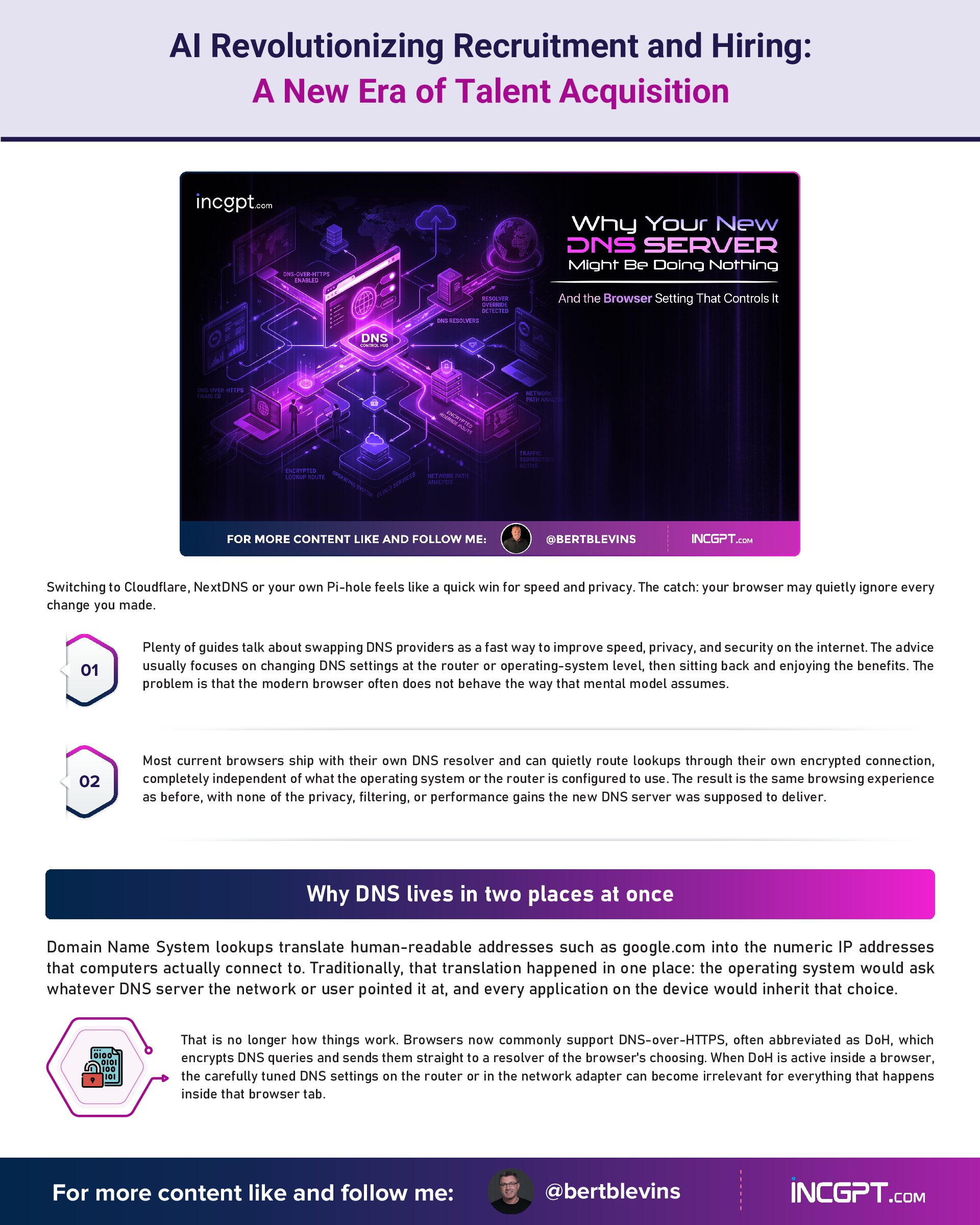
Why Your New DNS Server Might Be Doing Nothing — And the Browser Setting That Controls It

Why Your New DNS Server Might Be Doing Nothing — And the Browser Setting That Controls It

Switching to Cloudflare, NextDNS or your own Pi-hole feels like a quick win for speed and privacy. The catch: your browser may quietly ignore every change you made.
Plenty of guides talk about swapping DNS providers as a fast way to improve speed, privacy, and security on the internet. The advice usually focuses on changing DNS settings at the router or operating-system level, then sitting back and enjoying the benefits. The problem is that the modern browser often does not behave the way that mental model assumes.
Most current browsers ship with their own DNS resolver and can quietly route lookups through their own encrypted connection, completely independent of what the operating system or the router is configured to use. The result is the same browsing experience as before, with none of the privacy, filtering, or performance gains the new DNS server was supposed to deliver.

Why DNS lives in two places at once

Domain Name System lookups translate human-readable addresses such as google.com into the numeric IP addresses that computers actually connect to. Traditionally, that translation happened in one place: the operating system would ask whatever DNS server the network or user pointed it at, and every application on the device would inherit that choice.
That is no longer how things work. Browsers now commonly support DNS-over-HTTPS, often abbreviated as DoH, which encrypts DNS queries and sends them straight to a resolver of the browser’s choosing. When DoH is active inside a browser, the carefully tuned DNS settings on the router or in the network adapter can become irrelevant for everything that happens inside that browser tab.

Chrome: a conservative default that quietly upgrades your connection

In Google Chrome, the relevant control sits under Settings, then Privacy and security, then Security, in a section labeled Use secure DNS. The default option, often shown as OS default when available, is more cautious than it sounds. Rather than swapping your DNS provider, Chrome attempts to upgrade the existing DNS connection to an encrypted one, but only if the current provider supports DoH. If it does not, Chrome falls back to a regular DNS lookup.
There is one important consequence for anyone running a local resolver. With a tool like Pi-hole on the network, Chrome will generally respect the system DNS and not override it. That is the behavior most home-network enthusiasts actually want, since it allows the local filtering layer to keep working.

Edge follows Chrome's lead

Microsoft Edge is built on the same Chromium engine that powers Chrome, and its DNS handling reflects that. The location of the setting and the way it behaves are essentially identical, including the conservative default that only upgrades to encrypted DNS when the current provider supports it. Anyone comfortable with Chrome’s secure DNS controls will find nothing surprising in Edge.

Firefox is different — and that difference matters

Firefox takes a more assertive approach. The setting lives under Settings, then Privacy and Security, then DNS-over-HTTPS, and it offers four modes: Off, Default Protection, Increased Protection, and Max Protection. The mode names are not just marketing language. Picking Increased Protection or Max Protection tells Firefox to route queries through an external resolver, with Cloudflare as the default option and NextDNS available as an alternative, regardless of what the rest of the operating system is configured to use.
That is the real override moment. A user can carefully configure their router to point at a custom DNS server, then watch Firefox quietly send every lookup to Cloudflare anyway. The behavior is by design and aimed at protecting users on hostile networks, but it directly conflicts with DNS strategies built around the local network.

The hidden cost: Pi-hole, parental controls, and network-wide filtering

Browser-level DoH is the reason a lot of carefully built DNS setups appear to fail. Pi-hole and other network-wide ad blockers do their work by intercepting DNS queries at the router or local network level. When a browser bypasses that layer with its own encrypted connection, the filtering layer never sees the queries in the first place. Ads and trackers continue to load inside that browser, while everything else on the same network behaves normally — a pattern that confuses many users.
Parental control services that rely on DNS work the same way. They filter by inspecting and blocking lookups before they resolve, but a browser using DoH simply sends those lookups somewhere else. The filter is not broken; it is being routed around entirely.
The same trade-off shows up in corporate and school networks, where DNS filtering is a core part of the security stack. Users may run into unexpected access blocks or unexpected access allowances depending on whether the browser is honoring the network’s DNS or routing around it.

How to make sure your DNS change actually counts

The fix is straightforward once the issue is understood. Decide where DNS resolution should happen, then make every layer agree. If the goal is to use a custom resolver such as Pi-hole, NextDNS, or a corporate filtering service, the safest path is to disable secure DNS inside each browser, allowing the system or network DNS settings to take over. Encrypted DNS can still be enforced at the operating-system level on most modern platforms, so privacy is not lost in the process.
If the goal is the opposite — pushing all traffic to a specific encrypted provider regardless of where the device connects — then the browser is the right place to enforce that, and the system DNS becomes the secondary layer. Either choice is reasonable. Mixing them, or assuming the browser inherits a setting it does not actually inherit, is what causes the silent failures.

The bottom line

DNS feels like a low-level network detail, but in modern browsing it is a layered decision. Routers, operating systems, and individual browsers can each be running their own DNS configuration, and they do not always cooperate the way users expect. Anyone changing DNS providers for speed, privacy, security, or filtering should treat the browser as a first-class part of the setup, not an afterthought. Otherwise, the new DNS server is doing exactly the work the old one was: very little.
Why Your New DNS Server Might Be Doing Nothing — And the Browser Setting That Controls It
Download Full Article PDF
Get the complete guide in PDF format for offline reading.

On This Page

Published

06/05/2026

PDF

Available

Video

Available

Share This Article
Why Your New DNS Server Might Be Doing Nothing — And the Browser Setting That Controls It
PDF
Download Full Article PDF
Get the complete guide in PDF format for offline reading.
New Pega research finds that the organizations getting real value from AI agents begin by rethinking how their business works — not by chasing the technology itself.
In the era of constant data breaches and hacking threats, traditional passwords are increasingly seen as outdated and vulnerable. Even with password managers in place, the reliance on passwords remains a significant security risk. Enter passkeys—an innovative and much more secure alternative to passwords that is quickly gaining traction among companies and users alike. This article will explore how passkeys work, why they are more secure than passwords, the challenges involved in their adoption, and how you can start using them today.
For the better part of two years, the dominant story about artificial intelligence in the workplace has been one of replacement. Barely a week passes without another headline announcing layoffs tied to automation, and the message has been hard to miss: human roles are on the way out, and AI agents are stepping in. Spend a little time scrolling through professional networks and you might conclude that tomorrow’s company will be little more than a thin layer of managers supervising fleets of software.
In a recent advisory, analysts from Gartner issued a warning to businesses, advising them to block all AI browsers for now. These emerging technologies, also known as agentic browsers, are transforming how users interact with the internet, search for information, and manage daily workflows. However, Gartner’s analysts caution that the security risks outweigh the benefits at this stage, making them too risky for widespread adoption.

© 2026 BertBlevins.com · All Rights Reserved