AI Article

How I Stopped Repeating Myself to AI and Started Getting Real Work Done

How I Stopped Repeating Myself to AI and Started Getting Real Work Done

A simple setup inside Google Gemini turned a daily frustration into a permanent fix — and you can do it in under five minutes

AI is part of my daily workflow. It helps me plan, draft, write, and organize nearly everything. But for months, one nagging problem kept slowing me down: I had to re-introduce myself to the AI every single time I opened a new conversation.
It didn’t matter that the models were getting smarter. It didn’t matter that I knew exactly what I wanted. Every fresh chat meant typing out the same preferences, the same tone instructions, the same formatting rules. Memory features helped to some degree, but they were inconsistent. Some sessions picked up right where I left off. Others seemed to forget everything I’d ever said. My writing voice, my editorial standards, my preferred structure — none of it carried over reliably.
I kept coming back to Gemini because of its speed, its reasoning ability, and its strength with multimodal tasks. For many projects, it outperformed the alternatives. But its memory capabilities lagged behind competitors like ChatGPT, and that gap was costing me time every single day.
Then I discovered a feature that changed everything: Google Gemini Gems.

What Gems Are and Why They Matter

Gems are custom versions of Gemini that you configure once and use repeatedly. Think of them as saved roles or instruction sets that the AI follows automatically every time you open that particular Gem. Instead of pasting a three-paragraph briefing into every new chat, you define the rules once — your tone, your constraints, your expected output format — and the AI remembers all of it, indefinitely.
The concept is straightforward, but the impact is surprisingly large. Once you stop spending the first two minutes of every session explaining who you are and what you need, you start getting to the actual work immediately. That shift adds up fast.

Setting Up Your First Gem

Creating a Gem takes minutes. Inside Gemini, you open the Gem manager from the sidebar and start a new one from scratch. You give it a name, describe its role, and outline how it should behave.
I built one I call my “Skeptical Editor.” Its entire purpose is to be concise, critical, and laser-focused on clarity and accuracy. When I paste in a draft, it doesn’t ask me what kind of feedback I want. It already knows. It checks facts, tightens sentences, and flags anything vague or overwritten.
If you’re unsure how to articulate the persona you want, there’s a shortcut: type a rough description like “Be a tough but fair editor” and click the Magic Wand icon. Gemini will expand that single line into a detailed, well-structured set of instructions automatically. You can then tweak the result to match your exact needs.
The moment I hit “Create” and started my first conversation with the Gem, the difference was obvious. No warm-up. No re-explaining. I just pasted my text, typed “Fix this,” and got exactly the kind of feedback I’d been training Gemini to give me for weeks — instantly.

The Blueprint for a Gem That Actually Works

After experimenting with more than a dozen versions, I found that the most effective Gems all share a common structure. If you want yours to perform well from the start, build it around three pillars.
First, give it a specific persona. “Helpful assistant” is too vague. Instead, assign it a job title that reflects its purpose: “Strict Copy Editor,” “Strategic Marketing Coach,” “Technical Documentation Specialist.” The more defined the identity, the more consistent the output.
Second, define a clear mission along with boundaries. State exactly what the Gem is supposed to do — for example, “Take raw interview transcripts and produce a five-bullet summary.” Then tell it what to avoid. In my case, I banned a list of overused words and phrases that show up constantly in AI-generated text. Setting these guardrails upfront prevents you from having to correct the same mistakes repeatedly.
Third, lock in a consistent output format. Specify how information should be presented every time. Should it lead with a bolded summary? Use numbered lists? Keep responses under a certain word count? When the format is fixed, you spend less time reorganizing and more time using the output.

The Real Power: Feeding It Your Own Data

What elevated my Gem from useful to indispensable was connecting it to my actual files. Gems allow you to attach documents directly, and this is where the experience transforms.
You could upload a company style guide so the Gem enforces your brand voice across every piece of communication. You could attach a product spec sheet so it references accurate details without you having to copy and paste them. In my case, I uploaded manuscripts I’d written so the Gem could learn my writing voice from real examples rather than abstract descriptions. The result was editing feedback that felt like it came from someone who’d actually read my work before — because, in a sense, it had.

What This Actually Changed for Me

There’s a growing pressure to adopt more AI tools, stack more subscriptions, and add more complexity to your workflow. This was the opposite of that. I didn’t add a new tool. I simply used an existing one more effectively by removing a repetitive step that was quietly eating my time.
The biggest surprise wasn’t the time saved — it was the mental weight that disappeared. When you stop managing the AI and start simply working with it, the dynamic shifts. You stop overthinking your prompts. You stop second-guessing whether the AI understood your intent. You just work.
If you want to try this yourself, start small. Think about the one prompt you find yourself typing most often — the instructions you repeat almost daily. Turn that into a Gem today. Give it a clear role, a defined mission, and a fixed format. By the end of the week, you’ll likely find that you’ve reclaimed an hour or more of time you didn’t realize you were losing.
The best productivity hack isn’t always a new tool. Sometimes it’s just teaching the tools you already have to stop forgetting you.
How I Stopped Repeating Myself to AI and Started Getting Real Work Done
Download Full Article PDF
Get the complete guide in PDF format for offline reading.

On This Page

Published

25/03/2026

PDF

Available

Video

Available

Share This Article
How I Stopped Repeating Myself to AI and Started Getting Real Work Done
PDF
Download Full Article PDF
Get the complete guide in PDF format for offline reading.
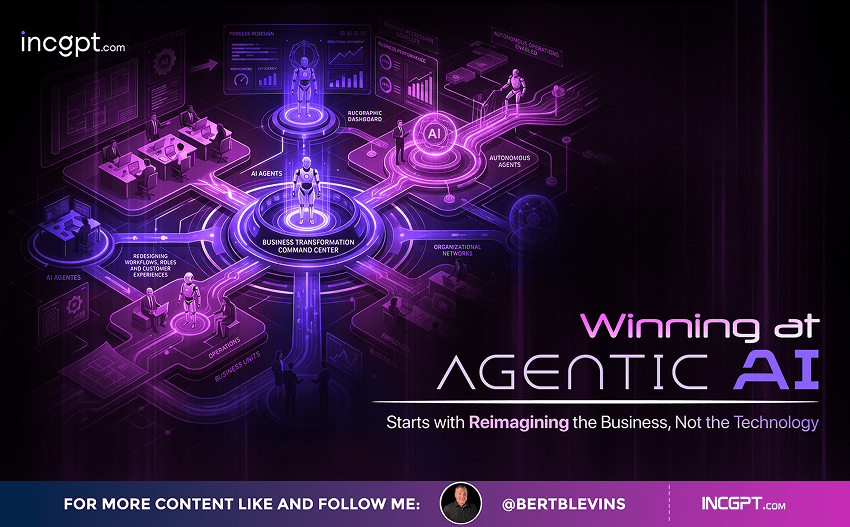
New Pega research finds that the organizations getting real value from AI agents begin by rethinking how their business works — not by chasing the technology itself.
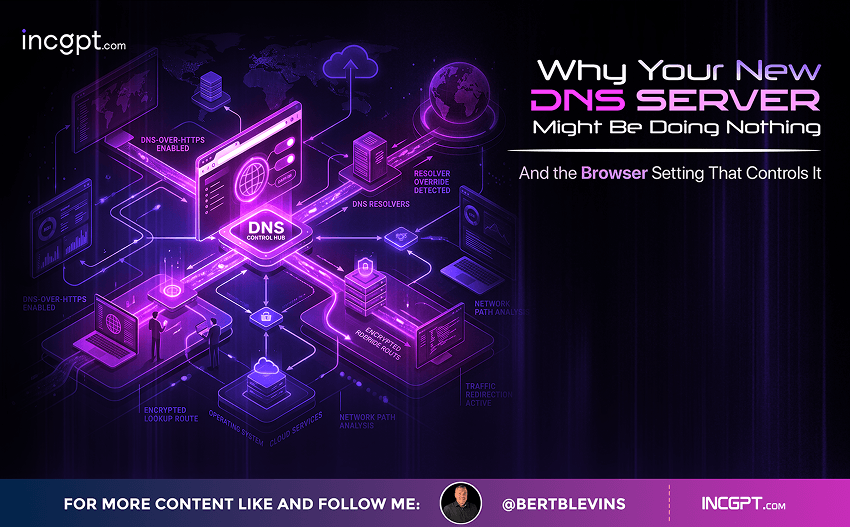
Switching to Cloudflare, NextDNS or your own Pi-hole feels like a quick win for speed and privacy. The catch: your browser may quietly ignore every change you made.
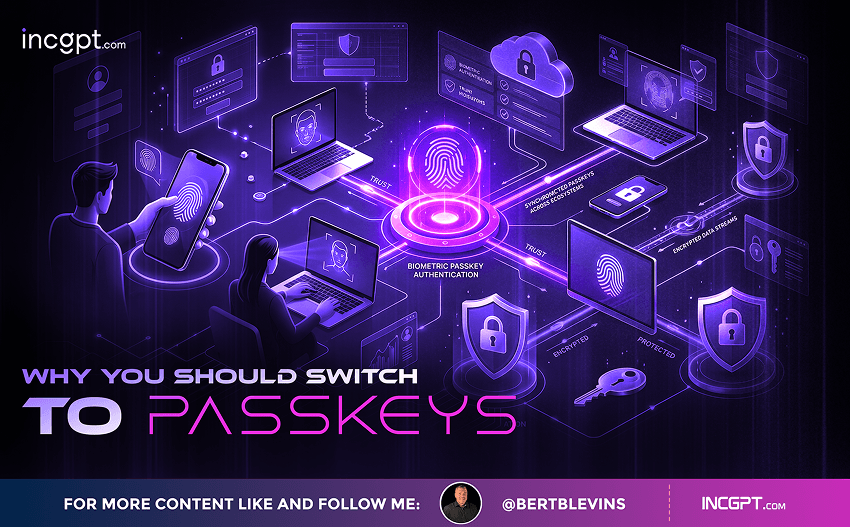
In the era of constant data breaches and hacking threats, traditional passwords are increasingly seen as outdated and vulnerable. Even with password managers in place, the reliance on passwords remains a significant security risk. Enter passkeys—an innovative and much more secure alternative to passwords that is quickly gaining traction among companies and users alike. This article will explore how passkeys work, why they are more secure than passwords, the challenges involved in their adoption, and how you can start using them today.

For the better part of two years, the dominant story about artificial intelligence in the workplace has been one of replacement. Barely a week passes without another headline announcing layoffs tied to automation, and the message has been hard to miss: human roles are on the way out, and AI agents are stepping in. Spend a little time scrolling through professional networks and you might conclude that tomorrow’s company will be little more than a thin layer of managers supervising fleets of software.
© 2026 BertBlevins.com · All Rights Reserved